
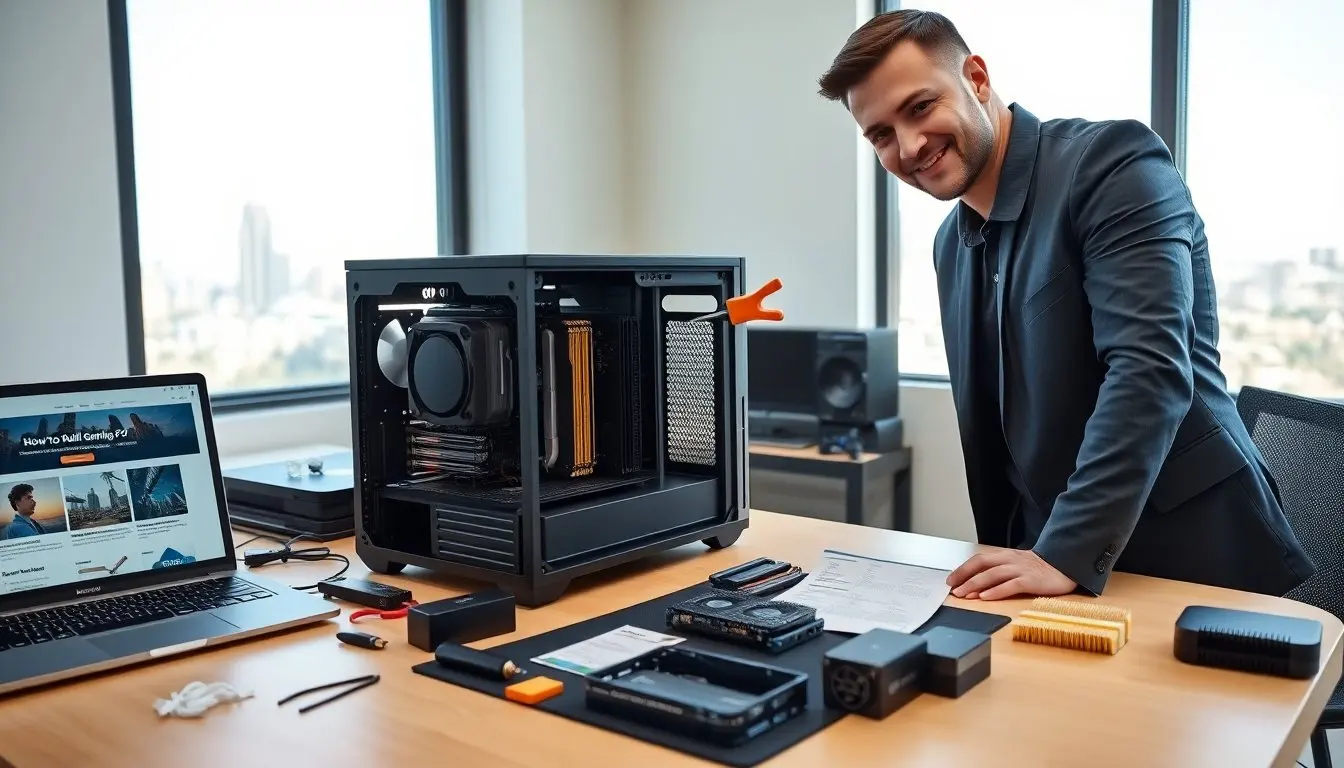
How to build a gaming PC guides a reader through choices and steps. The guide lists parts, shows compatibility checks, and explains assembly. The guide uses clear steps and short sentences. The guide helps a reader plan a budget, order parts, assemble the rig, and test performance. It also highlights common pitfalls, safety practices, and decision points so a first‑time builder can move from parts list to a stable, high‑performing system with confidence.
Key Takeaways
- Planning your gaming PC build starts with setting a budget and choosing parts that match your performance targets like frame rates and resolution.
- Verify part compatibility carefully by checking CPU and motherboard sockets, PSU wattage, and case size to ensure smooth assembly and operation.
- Assemble your gaming PC methodically, using essential tools and managing cables to optimize airflow and system stability.
- After building, update BIOS and drivers, test performance with benchmarks and stress tests, and monitor temperatures for a reliable gaming experience.
- Optimize your PC with cooling adjustments, software tweaks like enabling XMP, and routine maintenance including dust cleaning and driver updates.
- Future-proof your gaming PC by planning upgrades focused on GPU, RAM, storage, and CPU based on bottlenecks and gaming demands.
Plan Your Build: Budget, Performance Targets, And Parts Checklist
A builder begins by deciding how to build a gaming PC that fits their goals. They set a budget and pick target frame rates and resolution. Start by choosing the target game settings (e.g., 1080p high, 1440p ultra, or 4K) and desired frame rate range, then map those goals to the component tiers that typically deliver them. They list core parts: CPU, GPU, motherboard, RAM, storage, PSU, case, and cooler. For each part, note secondary considerations like number of USB ports, networking (Wi‑Fi vs. wired), and RGB or silent operation. They match the CPU and motherboard socket. They check RAM speed and size for the CPU and games, and consider whether dual‑channel kits or higher frequency modules will benefit the workload. They size the PSU for peak GPU and CPU draw and add 20% headroom, factoring in potential future upgrades. They pick storage that balances speed and capacity—often a smaller NVMe drive for OS and favorite games plus a larger SATA SSD or HDD for bulk storage. They note any peripherals and monitor needs, since display resolution and refresh rate directly influence GPU choice. They write a final parts checklist and a purchase priority list, ranking parts to buy first based on lead times, compatibility risk, and return policies.
Buy Smart: Compatibility Checks, Where To Shop, And Warranty Tips
A buyer verifies compatibility before purchase. They confirm the motherboard form factor fits the case and check clearance for tall CPU coolers and long GPUs. They ensure the GPU fits the case and the PSU has the right power connectors and enough PCIe connectors for multi‑power‑rail designs. They use online compatibility tools and read spec sheets; cross‑reference physical dimensions and power requirements rather than relying solely on model names. They shop at reputable retailers and compare prices across stores, watching for seasonal sales but balancing price with return windows and shipping reliability. They watch for bundle deals on CPU and motherboard combos and consider manufacturer rebates, but read terms carefully. They check return windows and warranty lengths for each part and confirm what the warranty covers (DOA, defects, RMA process). They register parts with manufacturers after receipt and keep original packaging until the build is confirmed working. They keep receipts and serial numbers for future RMA claims and consider purchasing a slightly higher‑wattage PSU from a reputable brand to reduce long‑term risk.
Assemble The PC: Tools, Step‑By‑Step Installation, And Cable Management
A builder gathers tools: a Phillips head screwdriver, anti static wrist strap, zip ties, and a soft brush. Additional helpful items include a flashlight or headlamp, spare standoffs and screws, thermal paste if the cooler doesn’t include pre‑applied paste, and a small container to keep screws organized. They prepare a clean, flat surface and lay out parts with manuals handy. They install the CPU into the socket and lock the cooler bracket, following torque guidance if provided; avoid touching pins or pads. They seat the RAM in the correct slots and install the M.2 drive if present, using the correct screw length. They mount the motherboard in the case with standoffs and test‑fit components before final fastening. They insert the power supply and route the 24‑pin and CPU 8‑pin cables, planning cable paths to keep airflow channels clear. They install the GPU in the PCIe slot and secure it with screws or bracket clips. They connect front‑panel headers, SATA, and case fans, double‑checking orientation and connector types. They manage cables with zip ties and route them behind the tray for airflow, bundling excess cable length and avoiding sharp bends. Before first boot, they perform a basic POST check: minimal components installed on the bench (CPU, one stick of RAM, GPU if no onboard video, PSU) to confirm POST and BIOS access, which simplifies troubleshooting if a part is faulty.
Post‑Build Setup And Testing: BIOS, Drivers, Benchmarks, And Stress Tests
They power on the rig and enter the BIOS to confirm CPU, RAM, and storage detection. They set the boot priority to the installation media and check basic system temperatures and voltages. They update the BIOS if a stability fix exists, following the motherboard maker’s instructions carefully to avoid interruption. They install the operating system and then install chipset and GPU drivers from official sources. They run light benchmarks to confirm baseline performance and then run stress tests on the GPU and CPU to verify stability under load; combine synthetic benchmarks with game tests that reflect the builder’s targets. They monitor temperatures and voltages during tests and note any thermal throttling, odd noises, or driver crashes. They address any stability issues by checking cooling, reseating components, verifying BIOS settings, or rolling back to a known‑good driver version. If overclocking, they increase clocks gradually and test stability at each step; if aiming for stock performance, enable manufacturer memory profiles like XMP/DOCP only after confirming system stability.
Optimize And Maintain: Cooling, Software Tweaks, And Routine Care
They optimize cooling by setting fan curves in the BIOS or software and adjusting pump speed for liquid setups. Balance noise and temperatures by creating a fan profile that raises fan speed only when thermals require it. They apply a moderate fan curve to reduce noise while keeping temps safe and consider vertical GPU mounts or additional intake/exhaust fans if airflow is restricted. They enable XMP or DOCP to run RAM at rated speed and verify stability with memory tests. They tune GPU settings for preferred frame rate or quality using in‑game settings or vendor control panels and use adaptive sync or frame‑limiting to reduce unnecessary GPU load. They keep drivers and OS updates current but stagger updates when stability is critical (e.g., before a tournament). They clean dust from fans and filters regularly, checking airflow paths and reapplying thermal paste if temperatures rise unexpectedly. They check cable tension and hard drive health periodically, run SMART checks on drives, and back up important files and create a recovery drive for quick restores. Maintain a simple log of BIOS/driver versions and major changes to make rollback easier after updates.
Future‑Proofing And Upgrade Paths: What To Upgrade First And When
They plan upgrades based on bottlenecks. They diagnose which component limits performance by monitoring frame‑time graphs, CPU and GPU utilization, and memory usage during the games you play. They upgrade the GPU if games lack frame rate; if CPU utilization is consistently maxed while the GPU has headroom, prioritize a CPU or a higher‑IPC model. They add RAM if memory use hits capacity during play or streaming and choose higher‑capacity or faster kits if the motherboard supports them. They move to a larger or faster NVMe drive for load times and consider adding a separate drive for scratch space or streaming assets. They upgrade the CPU when newer titles show high CPU frame‑time spikes or when platform features (like newer PCIe or memory standards) become critical for desired performance. They replace the PSU only if a new GPU needs more power or if efficiency and aging are concerns. They choose a motherboard with spare M.2 slots and ample PCIe lanes to ease future swaps and keep cases with good airflow and room for larger coolers to simplify upgrades. Finally, plan upgrades in pairs when needed (e.g., CPU + motherboard) to avoid incompatibility and preserve resale value of components you replace.