
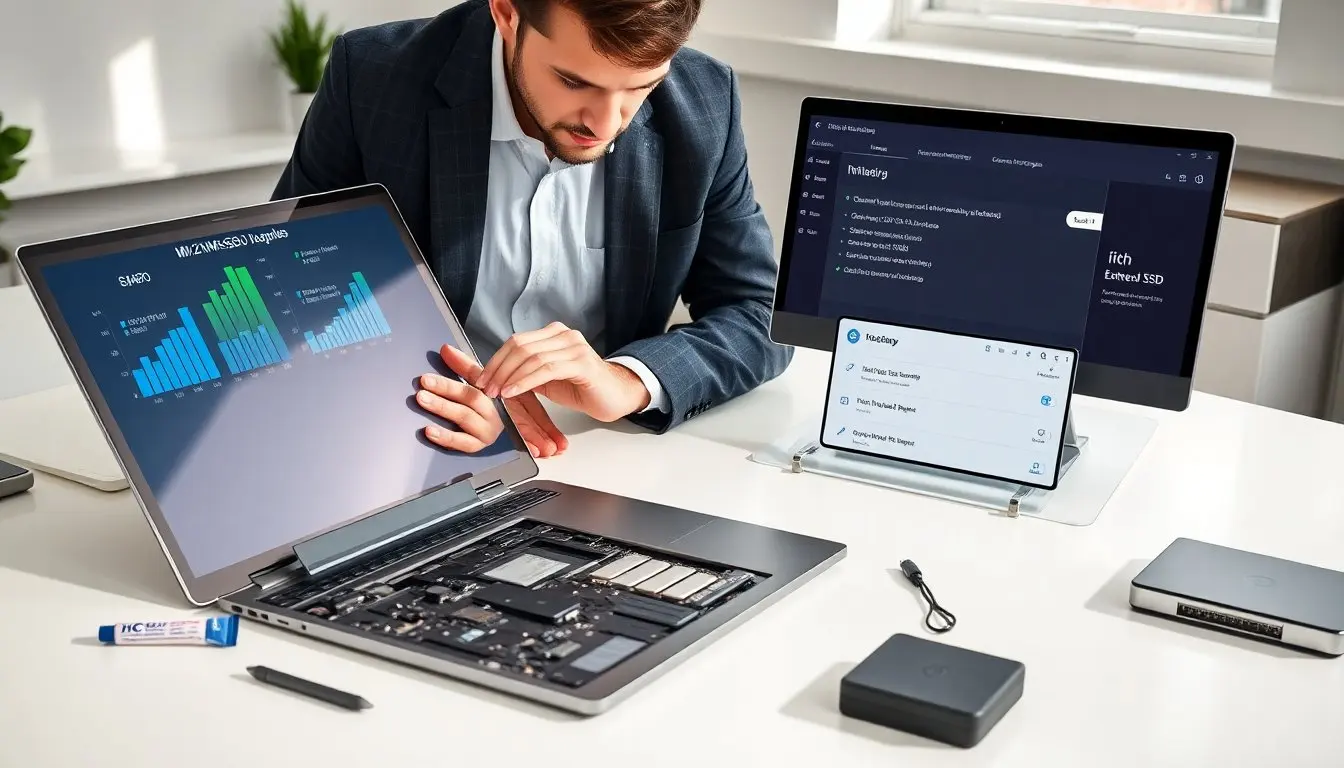
How to speed up old laptop is a common search for people with slow machines. The guide lists clear steps that anyone can follow. It shows quick maintenance, high-impact hardware upgrades, and practical software tweaks. The advice uses parts and settings that remain available in 2026. The reader will find steps they can do in an hour and upgrades that give lasting gains.
Key Takeaways
- How to speed up old laptop begins with quick maintenance like cleaning dust, uninstalling unused apps, and disabling startup programs to improve boot time.
- Upgrading hardware such as adding more RAM and replacing a mechanical hard drive with an SSD delivers the most noticeable speed improvements.
- Regularly updating the OS and drivers and using lightweight security software helps sustain laptop performance over time.
- Reducing visual effects, managing browser tabs, and controlling background apps decrease unnecessary CPU and memory usage.
- Performing scheduled disk cleanups and monitoring resource-intensive apps ensure the laptop runs efficiently and prevents slowdowns.
- Replacing an aging battery and improving cooling can stop performance throttling and extend your laptop’s usable life.
Quick Maintenance Steps You Can Do Right Now
How to speed up old laptop starts with basic cleaning and checks. He should remove dust from vents and fans; even a brief compressed-air cleaning and a careful fan wipe can drop temperatures and reduce thermal throttling. She should reboot the machine to clear temporary memory and apply pending updates—many speed issues resolve after a fresh restart. They should run a full malware scan using a reputable scanner to remove infections that stealthily hog CPU, disk, or network resources. It helps to uninstall apps that no one uses; use the OS app list or package manager to remove large or redundant programs and free gigabytes of disk space. He can use built-in storage tools to identify the biggest files and folders, and move photos, videos, and downloads to an external drive or cloud to keep the system disk under 80% full. She can set startup apps to off so the laptop boots faster, using Task Manager on Windows or Login Items on macOS. They should run disk cleanup utilities and check disk health with tools such as CHKDSK, fsck, or the disk utility in your OS to repair file-system errors; remember not to defragment an SSD. It helps to update the OS and device drivers—graphics and chipset drivers often contain performance fixes—and consider a UEFI/BIOS update if the vendor notes stability or power improvements. He can run built-in troubleshooters and system file checks (for example, SFC on Windows) to detect corruption. She should check battery health because a failing battery can trigger power limits that slow the CPU; calibrate or replace the battery if it reports poor health. They can reset power plans to high performance when plugged in and create a balanced profile for battery use. He can reduce visual effects and animations in accessibility or performance settings to lower GPU and CPU load. She can clear browser cache, disable or remove unnecessary extensions, and use a single profile or container to reduce extension overhead. They should close unused tabs or use tab-suspend extensions to free memory. It helps to restart the laptop after these steps to ensure updates and configuration changes take effect. If problems persist, note the symptoms (slow boot, high fan noise, constant 100% disk usage) and check logs to guide the next steps.
Hardware Upgrades That Deliver The Biggest Real-World Gains
How to speed up old laptop often needs hardware upgrades to change the experience. The two changes that typically deliver the largest perceptible gains are adding RAM and swapping a mechanical hard drive for an SSD. They can add more RAM to reduce swapping and make multitasking smooth; confirm RAM type, maximum supported capacity, and module slots by checking the service manual or system information before buying. He should consider upgrading from 4GB to 8GB for casual use or to 16GB for heavier multitasking or light content creation when the board supports it. She can replace a slow HDD with a SATA or NVMe SSD—depending on the laptop interface—to get faster boot, application launch, and file-transfer speeds; cloning the old drive or doing a clean OS install are both valid migration approaches. They should also inspect the cooling system: old thermal paste and clogged heatsinks cause high temperatures and sustained throttling, so replacing paste and cleaning vents can restore peak performance. He can replace an aging battery if the laptop down-clocks the CPU under poor battery conditions, and add a cooling pad for modest additional thermal headroom. She can upgrade the Wi‑Fi card to support newer standards (if the laptop has a replaceable module) to improve network responsiveness and cloud-sync performance. For some laptops, a faster CPU will require replacing the whole board and is not cost-effective; weigh the cost of upgrades against the device’s value. They can often extend life by 2–4 years with a RAM + SSD combo, and sometimes longer with battery and thermal work. When opening the case, choose quality parts, use an anti-static wrist strap or ground yourself, keep screws organized, and follow manufacturer instructions to avoid voiding warranties or causing damage.
Software And System Tweaks For Sustained Performance
How to speed up old laptop requires ongoing software care for steady results. They should keep the OS, drivers, and firmware updated to receive performance patches and security fixes, but schedule updates for off-hours to avoid interruptions. He can enable automatic updates but set them to install at night or during idle periods. She can disable or uninstall background services and startup apps that are unnecessary; use the task manager or system monitor to identify which services consume CPU, memory, or disk I/O. They should use a lightweight antivirus or the OS built-in security solution to reduce constant scanning overhead, and configure scans to run during idle times. He can swap heavy applications for lighter alternatives—use lightweight editors, image viewers, and email clients when possible—and prefer web or progressive web apps that put less long-term strain on the system. She can choose a browser known for efficient memory usage or adopt tab-management habits: pin frequently used tabs, suspend background tabs, or use session managers. They should manage virtual memory by letting the OS control the pagefile in most cases, or set a fixed pagefile size if troubleshooting excessive disk thrashing. He can schedule regular maintenance tasks—disk cleanup, temporary-file purge, and integrity checks—to run automatically during off-hours so they don’t compete with interactive tasks. She can use built-in resource monitors to identify resource hogs and either update, reconfigure, or replace problematic apps; lowering process priority for background jobs can also keep the system responsive. They should create system restore points or full backups before major changes to allow easy rollback. If system clutter or driver conflicts persist, a fresh OS install often restores native performance by removing accumulated cruft; back up data first and reinstall from a clean image if needed. He can move large user folders (Downloads, Videos, Photos) to a secondary drive or external storage to keep the system drive lean. She should tune power plans to prevent aggressive throttling while plugged in and configure updates and scheduled scans for times of low use to keep interactive performance high. They should also review startup and scheduled tasks periodically and archive or remove old software that is no longer needed. Regular monitoring, disciplined storage management, and modest hardware upgrades together form a practical, cost-effective path to how to speed up old laptop and keep it running well over time.