
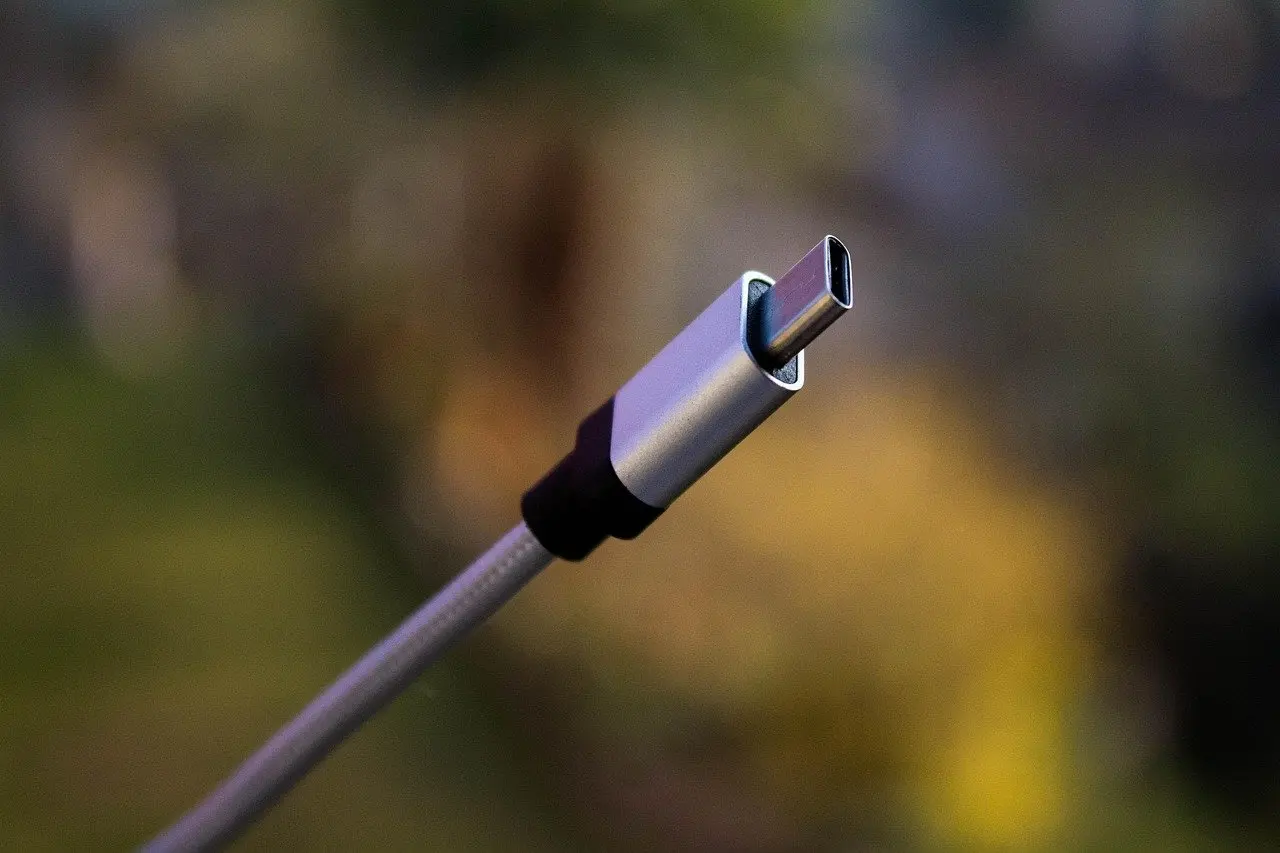
USB-C vs USB 3 is a comparison of two different things: USB-C is a physical connector, while USB 3 is a family of speed standards. A USB-C port can run at USB 3 speeds, but nothing about the plug shape guarantees it.
The sections below follow the chain from plug to speed to power, then turn it into buying rules. For the wider buying decision, see our guide on how to choose a laptop.
Connector and standard are separate layers
USB-C names the shape of the plug and port, not how fast data moves through it. PBS NewsHour describes USB-C as the physical connector, and notes that it can carry both USB and Thunderbolt protocols. That is why a single oval port can be a basic charging socket on one device and a high-speed data and display port on another.
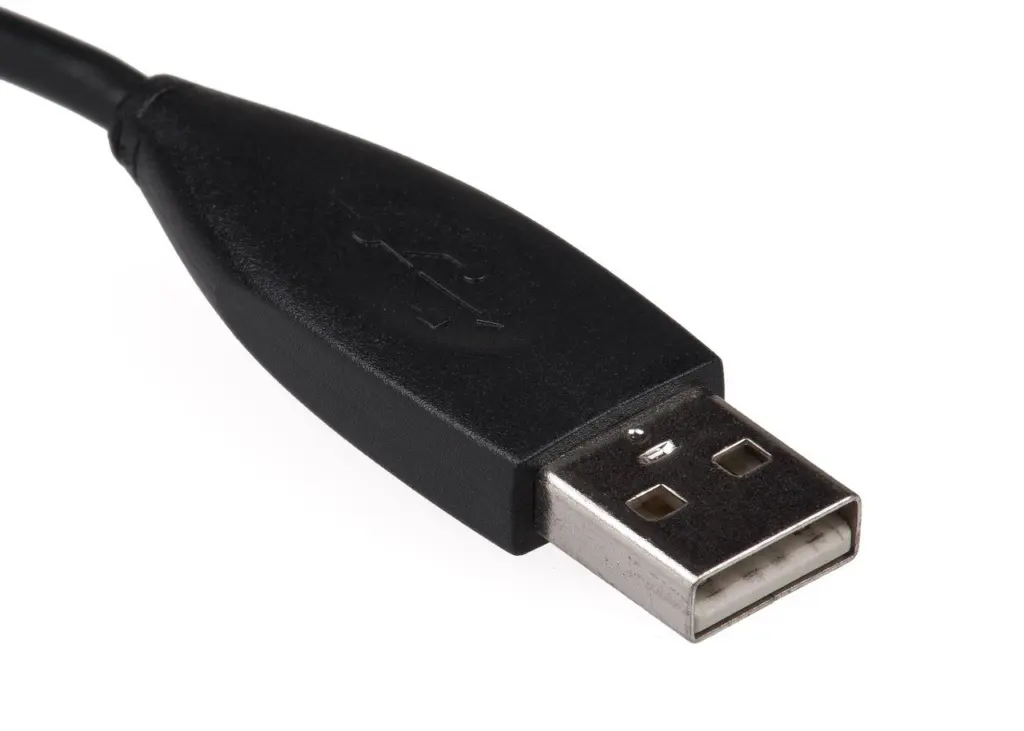
The standards sit on top of the connector. Standards such as USB 3.1, 3.0 and 2.0 define the data transfer speed and the function of the cable, according to Alogic. Plug types such as USB-C and USB-A only set the shape. The same source notes that a USB Type-C port may support USB 3.1, USB 3.0 or even USB 2.0, so the port tells you the plug, not the speed.
The standards body behind all this is the USB Implementers Forum (USB-IF), which PBS describes as a consortium of over 1,000 companies that promote and support USB technology. Its USB 3.2 specification absorbed all prior 3.x specifications, according to the USB-IF USB 3.2 page. So the older labels USB 3.0 and USB 3.1 now refer to modes within USB 3.2, which explains why the naming looks tangled.
How the speed of a USB-C connection is decided
The speed you get is set by the weakest link in the chain, not by the best part. Work through it in this order:
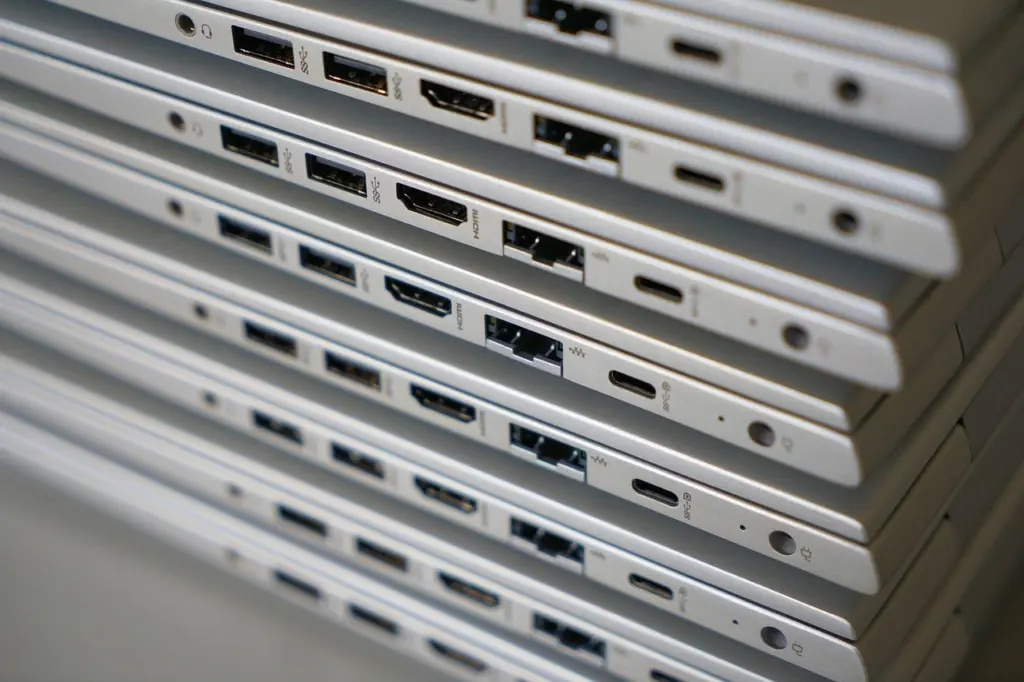
- Check the port. The device maker decides which standard sits behind each connector. Two identical-looking USB-C ports on one laptop can differ.
- Check the cable. USB Type-C cables were designed from the outset to support multi-lane operation, per the USB-IF. That is how USB 3.2 reaches 20 Gbps, by using two lanes of 10 Gbps. A cable built for charging only will not unlock that.
- Check the device at the other end. USB 3.2 is backward compatible with all existing USB products and operates at the lowest common speed capability. A fast port connected to a slow drive runs at the slow drive’s pace.
USB 3.2 identifies three transfer rates: 20 Gbps, 10 Gbps and 5 Gbps. The naming history adds confusion. As Alogic explains, USB 3.1 Gen 1 is simply another name for USB 3.0 at up to 5 Gbps (SuperSpeed), while Gen 2 is 10 Gbps (SuperSpeed+). When a spec sheet says Gen 1 or Gen 2, translate it to the rate before comparing devices.
Speed and power by standard
The table groups the main tiers that run over USB-C, with what each means when you shop.
| Standard | Data rate | Power | Planning use |
|---|---|---|---|
| USB 3.2 | 5, 10 or 20 Gbps; 20 Gbps uses two lanes of 10 Gbps | — | Covers everyday external drives and peripherals; confirm which rate the port offers. |
| USB4 | Up to 40 Gbps, depending on cable rating | — | Pair with a cable rated for the speed you expect. |
| Thunderbolt 4 | Up to 40 Gbps | 100 W charging | Suits docks and laptops that need data, display and charging in one cable. |
| Thunderbolt 5 (announced 2023) | Up to 80 and 120 Gbps | 140 to 240 W | A ceiling for future hardware; both ends must support it. |
Figures come from the USB-IF USB 3.2 page and PBS NewsHour.
Power works separately from data speed. Alogic notes that 100 W at 20 V and 5 A is produced when USB-C is combined with Power Delivery. A manufacturer, EcoFlow, says USB Power Delivery on USB-C can reach up to 240 W. Those are ceilings, not what every USB-C port provides. A phone port and a laptop charging port can both be USB-C and differ widely in wattage, so read the wattage on the charger and device rather than assuming.
USB-A and USB-C compared in daily use
USB-A is the older rectangular plug, and its limits come from the generations it was built for. Anker lists USB 2.0 at 480 Mbps and USB 3.0 at 5 Gbps, with Type-A power up to 2.5 W for USB 2.0 and 4.5 W for USB 3.0. EcoFlow adds that USB-A ports typically max out at USB 3.0 or 3.1 speeds and typically deliver 2.5 W to 12 W.
USB-C changes the practical experience in three ways:
- Reversible fit. The connector can be inserted in either orientation, as PBS notes, so there is no wrong way up. Anker describes it as a 24-pin reversible plug.
- Video over one cable. EcoFlow says USB-C supports alternate modes such as DisplayPort and HDMI over a single cable. That lets one port connect a monitor, though only if the device supports the mode. If you want to capture what appears on your laptop screen once it is connected, our guide on How To Screen Record On A Laptop In 2026: Fast, Clear Steps For Windows, Mac, Chromebook – Worio covers the steps.
- Higher ceilings. USB-C is the connector for USB4 and Thunderbolt, so the fastest options live there, not on USB-A.
For storage, the port matters as much as the drive. If you are deciding between drive types before worrying about the cable, SSD Vs HDD 2026: Which Drive Should You Buy Now — Speed, Cost, And Longevity Compared – Worio weighs speed, cost and longevity. A fast external SSD on a slow port will run at the lowest common speed, so match the two.
Choosing the right cable
Start from the job, then buy the cable that fits it. Different jobs need different things, and the cheapest cable that suits your task is usually the right one.
- Match the plug at both ends. Anker points out that you cannot charge a USB-C device directly with a USB Type-B cable. A USB-C to USB-C cable suits two USB-C devices, while a USB-A to USB-C cable suits older chargers and computers.
- Buy for data speed when moving large files. Look for a cable that states its rate. For a USB4 connection, PBS notes the data rate depends on the rating of the cable, so a cable rated lower than the port holds the connection back.
- Buy for wattage when charging a laptop. The charger, cable and laptop all need to support the power level. EcoFlow’s 240 W figure and the 100 W Thunderbolt 4 figure are the top end, so check what your own laptop asks for.
- Buy for video when connecting a display. Confirm the port supports DisplayPort or HDMI alternate mode before buying a cable or adapter for a monitor.
- Check safety certification. Anker advises checking a cable’s safety certifications before buying, which matters most for charging cables that carry higher power.
If you are replacing a single cable for a phone or headphones, a basic USB-C cable is enough. If you are buying one cable to run a dock, display and charger together, choose a Thunderbolt or USB4 rated cable, since those standards carry data, video and power together at the figures in the table above.
Frequently asked questions
Is USB-C the same as USB 3?
No. USB-C is a connector shape, and USB 3 is a speed standard. A USB-C port may support USB 3.1, USB 3.0 or even USB 2.0, so the port label or spec sheet decides the speed.
What speeds can USB-C deliver?
It depends on the standard behind the port. USB 3.2 offers 5, 10 or 20 Gbps, USB4 reaches up to 40 Gbps depending on cable rating, and Thunderbolt 4 reaches up to 40 Gbps. Thunderbolt 5 has been announced at up to 80 and 120 Gbps.
Is Thunderbolt the same as USB-C?
No. Thunderbolt is a protocol that can run over the USB-C connector, and USB-C supports both USB and Thunderbolt. A USB-C port without Thunderbolt support will not run Thunderbolt devices at their full capability.
Will an old USB-A device work with a newer USB 3.2 port?
Yes. USB 3.2 is backward compatible with all existing USB products, though the connection runs at the lowest common speed of the devices involved.
Do all USB-C ports charge at 100 W?
No. The 100 W at 20 V and 5 A figure applies when USB-C is combined with Power Delivery. Check the wattage listed for your charger and device.