
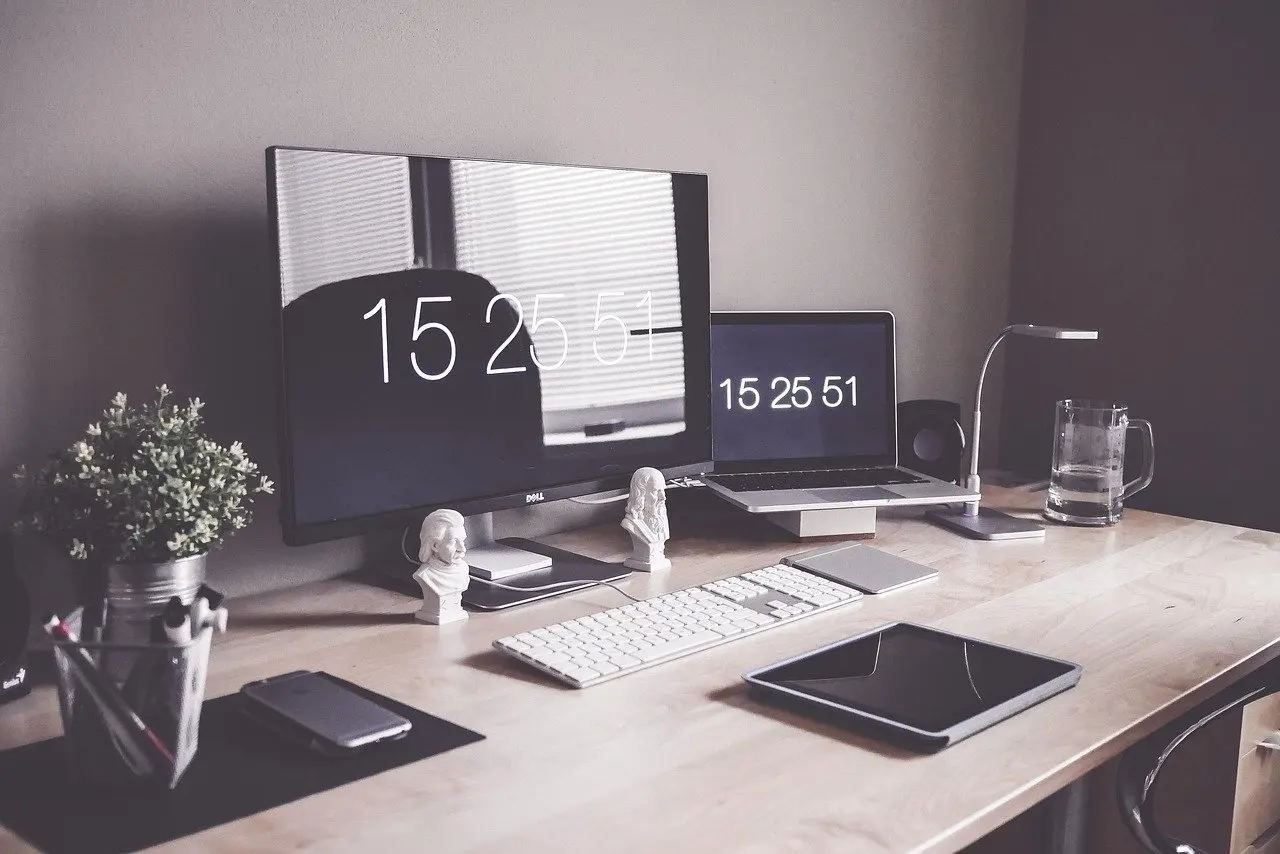
Here is how to connect two monitors: match each monitor’s cable type (HDMI, DisplayPort or USB-C) to a free video port on the computer, then choose Extend or Duplicate in display settings.
The main condition is port count. A laptop with only one video output needs a dock or multi-port adapter. If you are still shopping, start with how to choose a laptop.
How two monitors share one computer
Every monitor needs its own signal path from the computer. Dell’s setup guidance says to identify the cable type for each monitor and make sure the computer has matching ports. The monitors’ inputs and the computer’s outputs have to line up, either directly or through an adapter.
The practical order is: check ports, pick cables, plug in, then set the layout in the operating system. Most failed setups fail at the first two steps. A monitor can be perfectly healthy and still show nothing because the computer has no free output of the right type, or because the cable is a charging-only USB-C lead.
One connection habit helps on a desktop. Lenovo’s buying guide suggests connecting one monitor to the computer’s primary display port and the other to a secondary display port, so the first monitor you plug in is the one the computer treats as the main output.
Check your ports before buying anything
Look at the sockets on the computer and on each monitor. HP lists the usual laptop video ports as HDMI, USB-C, Thunderbolt, DisplayPort and VGA, and Dell notes that HDMI, DisplayPort and USB-C are the most common on modern monitors and computers. Write down which monitor input matches which computer output, and mark any pair that does not match. Those pairs are where an adapter or a dock comes in.
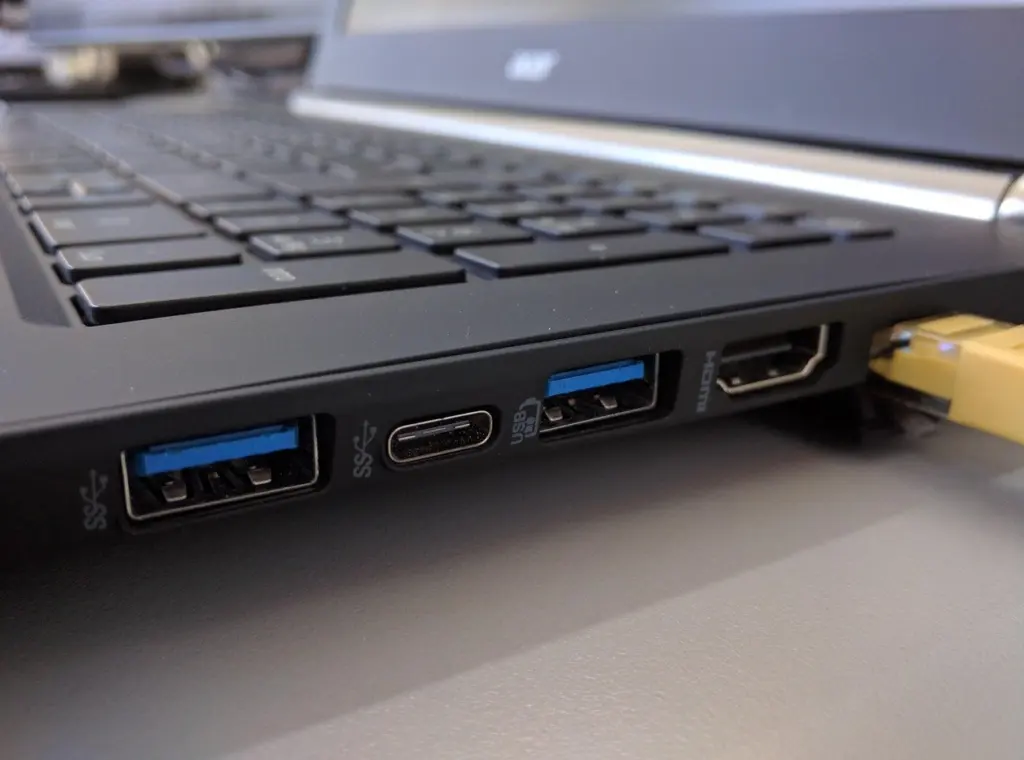
A USB-shaped socket is not proof of video output. Adorama’s setup walkthrough makes the same point: not all USB ports support video output. For video, the port needs DisplayPort Alternate Mode or Thunderbolt. The difference between the connector shapes is covered in USB‑A vs USB‑C: Which Connector Should You Use In 2026? A Clear, Practical Guide – Worio.
Cables, adapters and docks
Choose the cable by the two ports it joins, not by the monitor brand. If both ends match, use a straight cable. If they do not, add an adapter or dock. The table sets out what each connection type can and cannot do.
| Connection | What it does | Planning use |
|---|---|---|
| HDMI | One of the most common connectors on modern monitors and computers. A laptop can use HDMI for an external monitor while its own screen stays active. | Use one HDMI output per monitor. An HDMI splitter only duplicates the same image on both screens. |
| DisplayPort | Equally common on modern monitors and computers, and works with a laptop’s own screen in the same way as HDMI. | A good second output when the first monitor already uses HDMI. Match it to a DisplayPort input on the monitor. |
| USB-C | Carries video only if the port supports DisplayPort Alternate Mode, not just charging. | Confirm video support before buying cables or adapters. |
| Thunderbolt 4 | Supports multiple displays through a dock. | The strongest candidate for a single-cable laptop setup with a dock. |
| Dock or multi-port adapter | Adds outputs to a laptop that has only one video output. | Dell recommends a docking station for laptops. Add one before buying the second monitor. |
Connection details are drawn from Dell’s multi-monitor setup guidance and HP’s guide to connecting two monitors to a laptop.
Connect the monitors in Windows
Windows setup is a short sequence. Work through it in this order so each step rules out a cause before the next one.
- Check the physical connection. Microsoft’s first instruction is to make sure your cables are properly connected to your PC or dock.
- Update Windows. Microsoft recommends checking for Windows updates before adjusting display settings.
- Open the display settings. Go to Start > Settings > System > Display. Both monitors should appear in the layout diagram.
- Pick a display mode. Press the Windows key+P, or use the Multiple displays setting, and choose how the screens behave.
- Arrange and orient the screens. Drag the monitor boxes to match their positions on your desk, and set the orientation under Scale and layout if you use a screen vertically.
Display modes
Windows key+P offers four choices, and the right one depends on the task:
- Extend spreads one desktop across both screens, so you can move items between them. This is the usual choice for work.
- Duplicate shows the same thing on all your displays. It suits presentations, where the audience screen must match yours.
- PC screen only switches the second monitor off without unplugging it.
- Second screen only shows everything on the second display and is useful when a laptop is closed or being driven from a larger monitor.
Windows also treats one monitor as the main display. HP notes that the taskbar and new windows default to the primary monitor, so set that monitor to the screen you look at most.
If the second monitor is not detected
Start with the cheapest causes and move to the harder ones. Each item below addresses a different failure.
- Wrong input on the monitor. HP warns that monitors with multiple input ports may default to the wrong source. Use the monitor’s own menu to select HDMI 1, HDMI 2 or DisplayPort to match the cable you used.
- Windows has not noticed the screen. If you connected another display and it is not showing in Settings, use Start > Settings > System > Display > Multiple displays > Detect.
- Outdated drivers. HP describes outdated graphics drivers as a common cause of undetected monitors. Update through Windows Update or the graphics vendor.
- Reconnect one at a time. Dell advises disconnecting all monitors and reconnecting them one at a time, so Windows recognises each monitor individually.
- A splitter in the chain. If you are using an HDMI splitter, the laptop will only mirror the display rather than extend it. Use a USB-C adapter or a dock when you want separate screens.
- USB-C without video. A charging-only USB-C port or cable will not produce an image. Check for DisplayPort Alternate Mode, or use a Thunderbolt port.
- Graphics hardware limits. Dell cautions that not all graphics cards support multiple monitors. Check the card’s specifications for how many displays it can drive.
- Not enough bandwidth. If the computer cannot supply enough bandwidth for high-resolution displays, Dell says reducing the resolution on the working monitors helps.
If the computer feels sluggish once both screens are running, the fixes in Speed Up Your Old Laptop Fast: Simple Fixes, Smart Upgrades, and 2026 Tips – Worio cover general tuning.
Connect two monitors to a Mac
Mac laptops are more constrained by their ports than most Windows machines. Adorama notes that you may have HDMI out, but most Macs will have USB-C Thunderbolt as their connection. That makes the first question practical: can the Mac drive two displays directly, or does it need a dock?
Check your Mac model’s technical specifications for its external display limit before buying cables or a dock. A dock adds outputs, as Dell recommends for laptops that have a single video output, but confirm it suits your model first.
If a monitor has no USB-C input, an adapter is the answer. Adorama calls adapters very useful in that case. Connect the first monitor, wait for macOS to show it, then add the second. The attached monitors then appear in the display settings, where you can set their arrangement and orientation. Drag the display boxes to match the real layout of your desk, so the pointer crosses from one screen to the next in the direction you expect.
Frequently asked questions
Can my laptop’s own screen count as one of the two displays?
Yes. Dell says you can connect external monitors using HDMI or DisplayPort while using the laptop’s screen at the same time, so a laptop with one external monitor already gives you two displays.
Do I need to do anything other than change the setting to use a monitor vertically?
Yes. Microsoft says that if you change the orientation of a monitor in Windows, you also need to physically rotate the screen.
How do I tell which physical screen is which in Windows?
Select Identify in Settings > System > Display. Microsoft says a number appears on the screen of the display it is assigned to, which lets you match each box in the layout diagram to a real monitor.
What changes if I want more than two monitors?
The computer needs more outputs. Dell says that for three or four monitors, the graphics card must have the required number of HDMI, DisplayPort or USB-C outputs.